📖 How to Use
Complete guide to using Taskly.AI effectively
Getting Started with Taskly.AI
This guide will walk you through everything you need to know to use Taskly.AI effectively.
Access Taskly.AI
Visit the live application: https://taskly-ai-five.vercel.app/tasks
Creating Your First Task
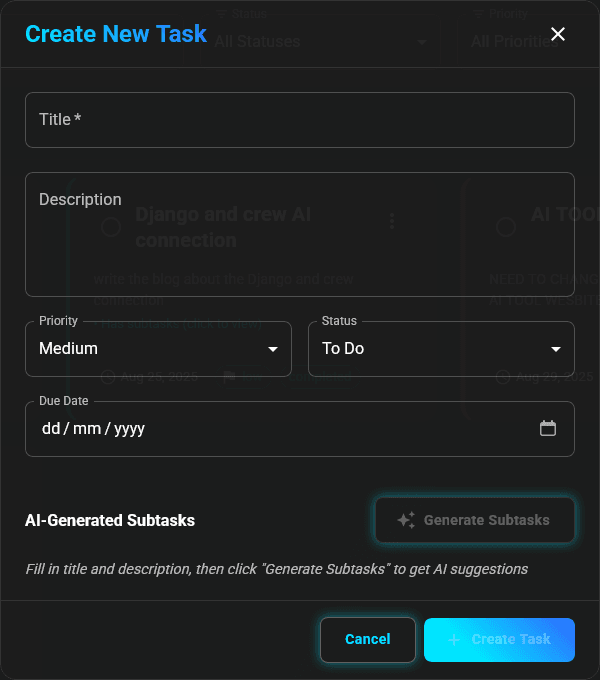
Fill in Task Details
Title (Required)
- Enter a clear, descriptive title
- Example: "Build crew AI project for food crew"
Description (Optional but recommended)
- Add detailed information about your project
- Include goals, requirements, and context
- More details = better AI suggestions
Priority
- Choose: High, Medium, or Low
- High: Urgent tasks
- Medium: Important tasks
- Low: Can wait
Status
- To Do: Not started yet
- In Progress: Currently working on
- Completed: Finished
Due Date
- Set a deadline for your task
- Use the date picker
- Optional but helps with planning
Generate AI Subtasks (Optional)
This is where the magic happens!
- After filling in title and description
- Click "Generate Subtasks" button
- Wait a few seconds for AI to analyze
- Review the generated subtasks
- Edit or customize as needed
For best AI results, include timeline, team size, and specific requirements in your description!
Save Your Task
Click "Create Task" button to save your task with all the details and subtasks.
Viewing Your Tasks
Dashboard Overview
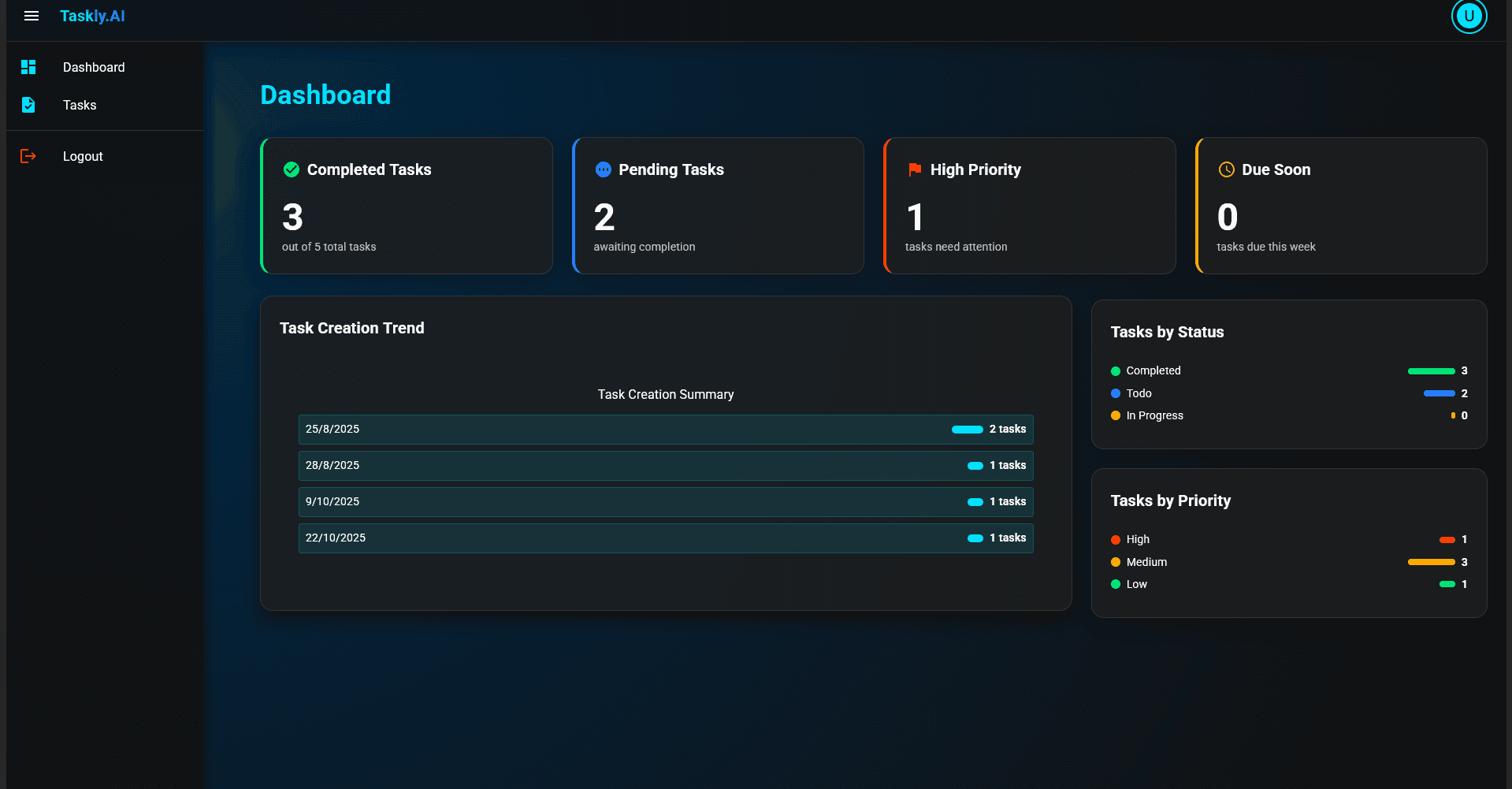
The dashboard shows:
- Completed Tasks: Your finished work
- Pending Tasks: What's left to do
- High Priority: Urgent items
- Due Soon: Tasks due this week
- Creation Trend: Your task creation over time
- Status Distribution: Tasks by status
- Priority Breakdown: Tasks by priority
Task List
- See all your tasks in one place
- Click any task to view details
- Quick view of title, priority, and status
Managing Tasks
View Task Details
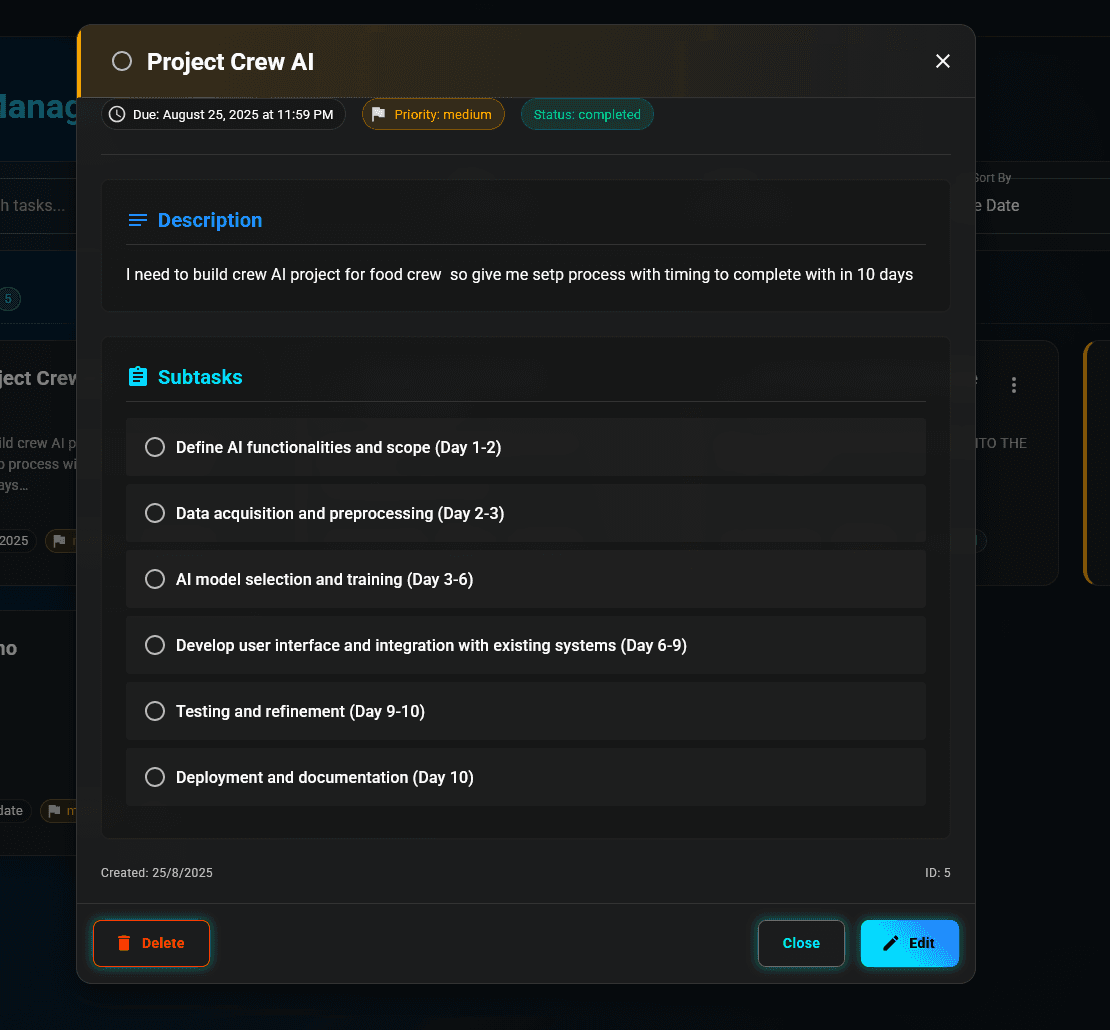
Click on any task to see:
- Full description
- All subtasks
- Priority and status
- Due date
- Creation date
- Edit and delete options
Edit a Task
- Click on the task
- Click "Edit" button
- Update any field
- Save changes
Complete Subtasks
- Check off subtasks as you complete them
- See progress percentage update
- Stay motivated by tracking progress
Update Task Status
Change status as you work:
- To Do → In Progress: When you start
- In Progress → Completed: When you finish
Delete a Task
- Open task details
- Click "Delete" button
- Confirm deletion
Deleted tasks cannot be recovered. Make sure you want to delete before confirming!
Using AI Effectively
Write Good Task Descriptions
Basic Description:
Build a websiteBetter Description:
Build a company website with modern design,
mobile responsive, contact form, and blog section
Best Description:
Build a company website using React and Tailwind CSS.
Features needed:
- Modern, professional design
- Fully mobile responsive
- Contact form with email integration
- Blog section with CMS
- SEO optimization
- Fast loading speed

Timeline: 3 weeks
Team: 2 developers, 1 designer
Include Key Information
For best AI results, mention:
- What: Project goal and deliverables
- How: Technologies or methods
- When: Timeline or deadline
- Who: Team size or resources
- Why: Context or requirements
Tips for Maximum Productivity
1. Use Priorities Wisely
- High: Only for truly urgent tasks
- Medium: Most of your tasks
- Low: Nice-to-have items
2. Set Realistic Due Dates
- Don't overcommit
- Add buffer time
- Consider dependencies
3. Break Down Large Projects
- Use AI to generate subtasks
- Make subtasks actionable
- One clear action per subtask
4. Review Your Dashboard Daily
- Check what's due soon
- Focus on high priority
- Track your progress
5. Update Status Regularly
- Move tasks to "In Progress" when starting
- Mark completed tasks promptly
- Keep your dashboard accurate
6. Use Detailed Descriptions
- More context = better AI suggestions
- Include specific requirements
- Mention constraints or limitations
7. Customize AI Suggestions
- AI provides a starting point
- Edit subtasks to match your workflow
- Add or remove steps as needed
Common Workflows
For Students
- Create task for assignment
- Use AI to break down study plan
- Set due date to submission deadline
- Check off subtasks as you study
- Mark complete when done
For Developers
- Create task for feature
- AI generates: design, code, test, deploy steps
- Set priority based on sprint
- Update status as you progress
- Track completion in dashboard
For Project Managers
- Create task for project phase
- AI breaks down into milestones
- Assign priorities to subtasks
- Monitor progress in dashboard
- Adjust timelines as needed
For Personal Projects
- Describe your goal
- Let AI create action plan
- Work through subtasks
- Track your progress
- Celebrate completion!
Dashboard Insights
Understanding Metrics
Completion Rate
- Shows productivity level
- Track improvement over time
- Aim for steady progress
Task Distribution
- See where your time goes
- Balance priorities
- Identify bottlenecks
Creation Trends
- Understand workload patterns
- Plan capacity better
- Avoid overload
Keyboard Shortcuts (Coming Soon)
N: New taskE: Edit taskD: Delete task/: Search tasksEsc: Close modal
Mobile Usage
Taskly.AI works great on mobile:
- Responsive design
- Touch-friendly interface
- All features available
- Smooth performance
Best Practices
Do's ✅
- Write clear task titles
- Add detailed descriptions
- Use AI for complex projects
- Update status regularly
- Review dashboard daily
- Set realistic deadlines
- Customize AI suggestions
Don'ts ❌
- Don't create vague tasks
- Don't skip descriptions for AI tasks
- Don't ignore priorities
- Don't let tasks pile up
- Don't forget to update status
- Don't delete tasks hastily
Troubleshooting
AI Not Generating Good Subtasks?
- Add more detail to description
- Include timeline and context
- Specify technologies or methods
- Try regenerating with better description
Can't Find a Task?
- Check different status filters
- Look in completed tasks
- Use search (coming soon)
Dashboard Not Updating?
- Refresh the page
- Check internet connection
- Clear browser cache
Next Steps
- Explore all Features
- Learn about AI Features in detail
- Start using Taskly.AI now!
You're ready to supercharge your productivity with Taskly.AI! Start creating tasks and let AI help you stay organized.